Budget & Alerts
Budget & Alerts answers the question Cost Analysis cannot: was this the plan? A budget puts a monthly cap on a slice of spend - a subscription, a service, a team - and its alert thresholds tell the people you name as spend approaches it, while there is still time to act.
Table of contents
What the Page Is For
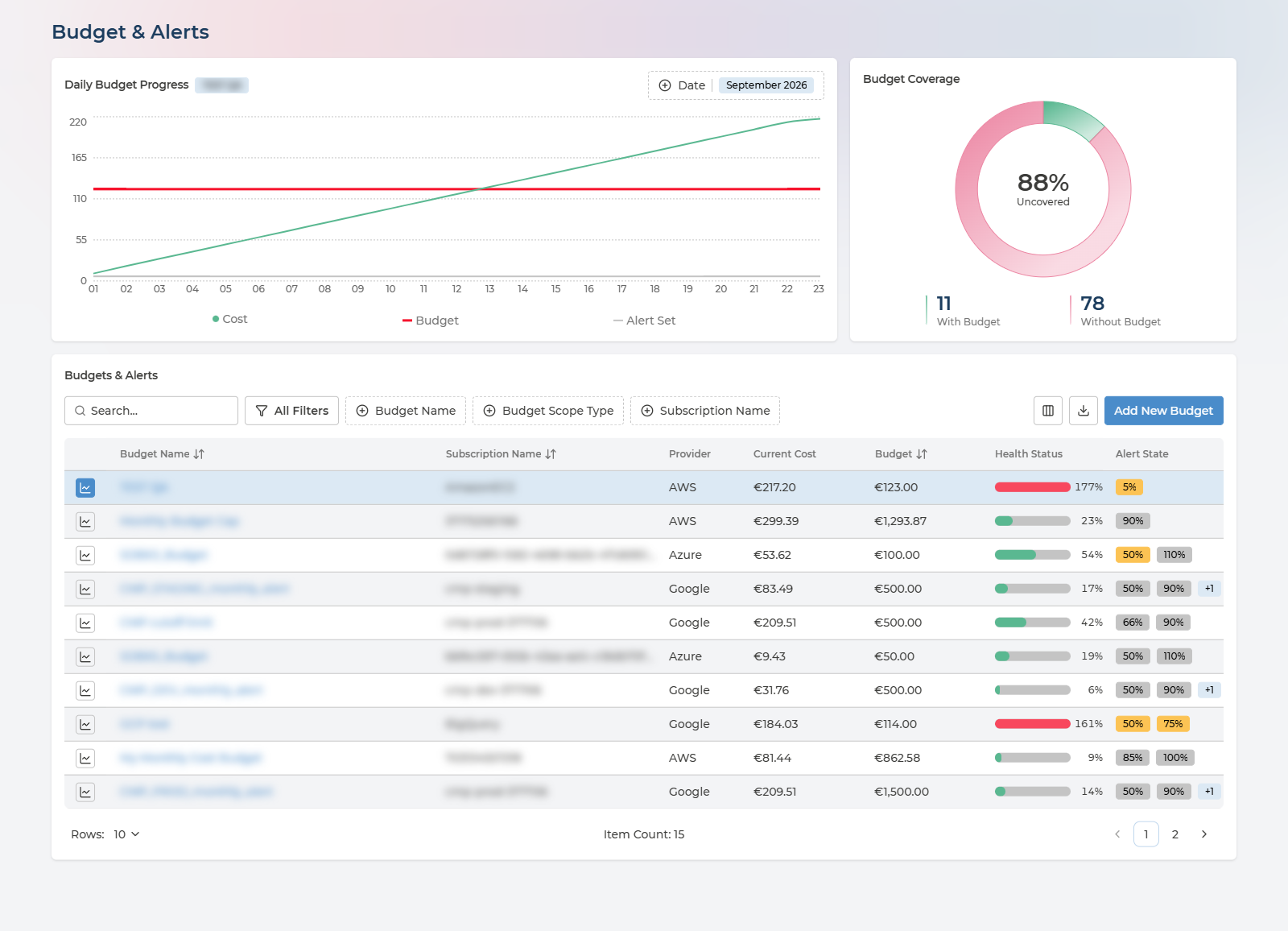
Three things work together:
- Daily Budget Progress - one budget over one month: spend building up against the cap and its alert thresholds.
- Budget Coverage - how much of your estate has a budget at all.
- Budgets & Alerts - every budget, how far through it you are, and which thresholds spend has passed.
On a first visit, start with coverage rather than with the budgets themselves. The budgets tell you how the spend you planned for is going; coverage tells you how much spend nobody planned for.
Two Kinds of Budget
The table holds budgets from two sources, and they behave differently:
| Cloud-native budget | Pulse budget (virtual) | |
|---|---|---|
| Where it is defined | In your cloud provider - for example an Azure budget on a subscription | In Pulse, with Add New Budget |
| How it gets here | Read from your cloud automatically | Created here, and exists only in Pulse |
| What it covers | Whatever the budget is set on in your cloud | Any of six scopes - see Adding a Budget |
| Alert rules | The notifications configured on it in your cloud, shown as they are set there | Thresholds and email recipients you set in Pulse |
| Changing it | In your cloud provider’s own console. Read-only in Pulse | In Pulse, by the owners of the assets it covers, or by a Manager |
A Pulse budget is a virtual budget. It lives only in Pulse and is never synced to your cloud provider, which is what lets it be set on scopes your cloud has no budget for - an Asset Group, for example, is Pulse’s own grouping. A cloud-native budget is the opposite: it lives in your cloud, and Pulse only reads it.
Creating a budget in Pulse creates nothing in your cloud, and a cloud-native budget cannot be changed from Pulse. It is the same read-only boundary that applies to the whole platform - see The Core Platform.
To see one kind at a time, use All Filters and filter on Cloud Native - virtual budgets are the ones that are not cloud-native.
Who Can Change What
| Who | Can do |
|---|---|
| Manager | Add Pulse budgets, and change or delete any of them |
| Asset owners - the users delegated to the Asset Group a budget’s scope belongs to | Change the Pulse budgets on their own assets - cap, thresholds, recipients, alert rules on and off - and delete them |
| Everyone else | Read everything on the page. Budgets they cannot edit open read-only |
Editing follows ownership: the people answerable for the spend are the ones who set its limits. See Asset Ownership for how owners are assigned.
Cloud-native budgets are read-only for everyone, whatever their role.
Budget Coverage
The donut splits your subscriptions - accounts or projects, on AWS and Google Cloud - into With Budget and Without Budget, and the centre shows the share that is Uncovered.
The uncovered share is usually the finding. It is how much of your estate can run up spend with no ceiling and no one being told, and it is the figure worth driving down before tuning the budgets you already have.
Coverage follows the cloud provider selector in the header, so it can be read for one cloud at a time.
The Budgets Table
Each row is one budget. The icon at the start of a row selects that budget for Daily Budget Progress; the budget name opens its detail.
Every column in the budget table
| Column | What it holds | Values |
|---|---|---|
| Budget Name | The budget - click it to open its rules | Your own names |
| Subscription Name | What the budget is set on | For a subscription budget, the subscription ID |
| Provider | Which cloud the budget belongs to | AWS · Azure · Google Cloud |
| Current Cost | Spend so far this month within the budget’s scope | An amount |
| Budget | The monthly cap | An amount |
| Health Status | Current Cost as a share of Budget | A percentage - green below 100%, amber at 100%, red above |
| Alert State | The budget’s thresholds, each highlighted once spend has passed it | One chip per threshold |
Filter by Budget Name, Budget Scope Type or Subscription Name, or search. All Filters adds Cloud Native. The table exports to CSV in full; Alert State is not part of the export.
Health Status is progress, not a verdict. It is simple arithmetic - this month’s spend divided by the cap - so read it against the date. 40% on the 28th is comfortable; 40% on the 5th is heading for the cap well before month end.
Alert State shows how far through the thresholds you are. A budget with thresholds at 50%, 80% and 100% and a Health Status of 85% shows the first two chips highlighted. Where there are more thresholds than fit, the rest are summarised as +1, +2 and so on.
A budget that sits well under its cap month after month is worth a look too. It is money set aside that could be planned elsewhere.
Daily Budget Progress
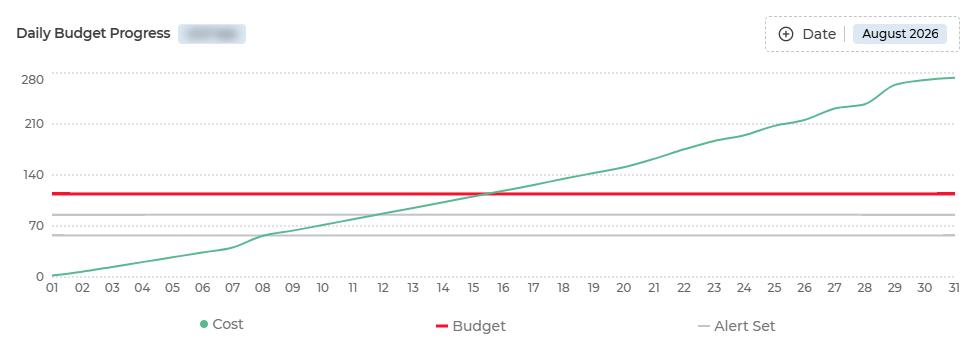
Select a budget with the icon at the start of its row, and choose the month from Date - any of the last twelve. The chart draws three things:
- Cost - spend building up through the month.
- Budget - the cap, a flat line across the month.
- Alert Set - one line for each alert threshold.
Where the Cost line crosses an Alert Set line is the day that threshold was passed. The slope matters more than the height: a line on course to meet the cap by the 20th is the case to act on mid-month, rather than discover on the invoice. Hover any day for its figures.
The selected budget is held in the page address, so a link to Budget & Alerts can point at a specific budget.
Adding a Budget
Add New Budget, above the table, opens a panel: Set a monthly spend cap for a scope and get alerted before it’s exceeded.
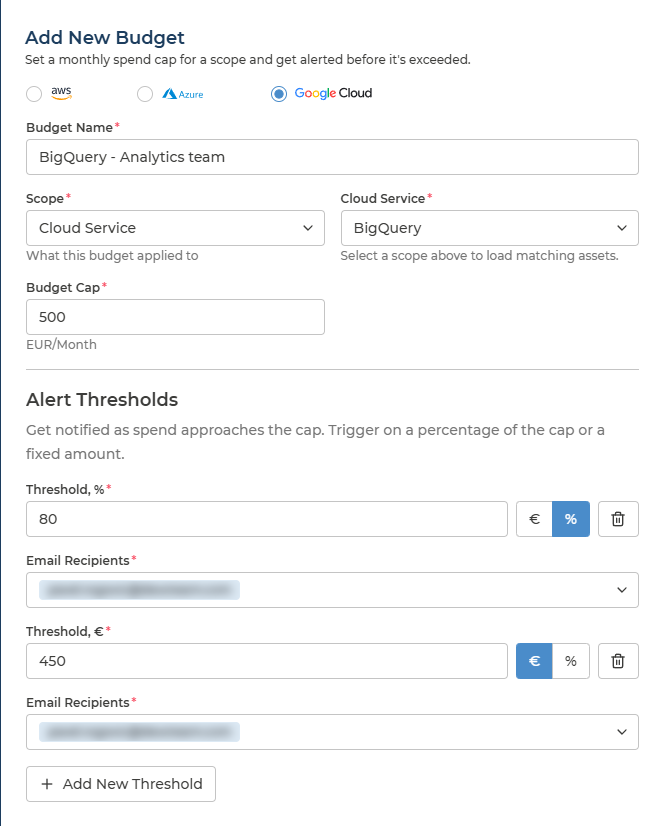
- Cloud provider - AWS, Azure or Google Cloud, at the top of the panel.
- Budget Name - something the people receiving the alert will recognise.
- Scope - what the budget applies to: Asset Category, Asset Group, Cloud Provider, Cloud Service, Cloud Subscription or Cloud Tenant.
- The scope value - the field takes the name of the scope you chose, and lists the matching items for that provider.
- Budget Cap - the monthly limit, in the currency selected in the header.
- Alert Thresholds - at least one. For each threshold, set the value as a percentage of the cap or as a fixed amount, using the toggle beside the field, and choose the Email Recipients from the users in your company. Add New Threshold adds another.
Save, and Pulse confirms Budget created. The cap and each threshold must be a number greater than 0, and a budget cannot be saved without at least one threshold: Add at least one alert threshold.
The six scopes are the tabs of Cost Analysis, apart from Tags. Whatever slice of spend you were reading on one of them can be given a budget here. An Asset Group budget is a team budget, and needs Asset Ownership set up first.
Each threshold carries its own recipients, which lets one budget warn in stages: an early threshold to the team that owns the spend, a late one to whoever approves the money.
Changing or Removing a Budget
Click the budget name. What opens depends on the budget and on your role.
A Pulse budget you can edit - as a Manager, or as an owner of the assets it covers - opens in the same panel it was created in, with its thresholds listed under Existing Alerting Rules:
- Each rule has a Set Rules switch. Turn it off to stop that rule’s notifications without deleting the threshold, and back on to resume them.
- Change the cap, thresholds or recipients and save. Pulse confirms Budget updated.
- Delete Budget removes it, after a confirmation: Delete budget? This removes the budget and all of its alert thresholds.
A cloud-native budget, or a Pulse budget you cannot edit, opens a read-only Rules panel:
| Column | What it holds |
|---|---|
| Type | The rule’s name - for a cloud-native budget, as defined in your cloud, for example actual_GreaterThan_80_Percent |
| Threshold | The threshold, as a percentage of the cap |
| Amount | The same threshold as an amount |
| Who the rule notifies |
To change a cloud-native budget, change it in your cloud provider; Pulse reads it from there.
When Alerts Are Sent
- Cloud Essentials - visibility only. Budgets and how spend tracks against them are shown, but notifications are not sent.
- Pulse Premium and Managed Cloud Economics - the email recipients on each threshold are notified when spend passes it.
A rule whose Set Rules switch is off sends nothing, whatever the tier.
Q&A
Why can I not edit this budget?
Either it is a cloud-native budget, which is read-only in Pulse and changed in your cloud provider, or it covers assets you are not an owner of. A Pulse budget can be edited by a Manager, or by the users delegated to the Asset Group its scope belongs to.
Does reaching a budget stop the spending?
No. A budget is a cap for tracking and alerting. Nothing in Pulse stops, limits or changes resources in your cloud when a budget is reached or exceeded.
Health Status is over 100%, but nobody was told
Check three things. The tier: on Cloud Essentials no notifications are sent. The rules: a threshold whose Set Rules switch is off sends nothing. And the recipients on the threshold itself - each threshold notifies only its own list.
Can a budget cover a team rather than a subscription?
Yes. Choose Asset Group as the scope. The budget then follows the assets allocated to that group, wherever they sit - which needs Asset Ownership configured first.
What is a virtual budget?
A Pulse budget - one created in Pulse with Add New Budget. It is called virtual because it exists only in Pulse: nothing is created in your cloud provider, and its alerts, on the tiers that send them, are emails sent by Pulse. The other kind, a cloud-native budget, is defined in your cloud and read into Pulse. See Two Kinds of Budget.
Does creating a budget here create one in my cloud?
No. A Pulse budget is virtual - it exists only in Pulse. Budgets that already exist in your cloud are read into Pulse as cloud-native budgets, but nothing is written back.
Can I get the budget list out of Pulse?
Yes - the budget table exports to CSV in full. Alert State is the one column not included.