Policy Manager
Policy Manager is where your compliance baseline is decided: which security frameworks you are measured against, and what should happen when each individual policy inside them is broken. Everything the other Cloud Compliance pages show you follows from the choices made here.
Table of contents
What the Page Is For
Two decisions, taken in order, and everything downstream depends on them:
- Which frameworks are we measured against? Activating a framework puts it into your organisation’s active posture assessment - the set of standards Pulse scores you against and raises violations for.
- What should happen when each policy is broken? Remediate, Audit, Exempt or Under Investigation, set per policy, is the instruction Remediation Planner and the reports downstream act on.
The page is laid out as those two steps, and the second is disabled until the first is done.
It is written for the Compliance Manager - the person accountable for what the organisation is measured against, rather than for the owners of individual assets.
Who Can Change What
| Role | Can do |
|---|---|
| Manager | Activate and deactivate frameworks, set the default framework, set Policy Action and Prevention Preference |
| Analyst, User | Read everything on the page. Forms are visible but disabled |
Without the Manager role the page shows Read-Only View: Setting Policy Actions requires elevated Compliance Manager permissions.
A second gate applies to everyone, Managers included: the per-policy settings stay disabled until a framework is activated. Until then you will see Please activate a Security Framework to enable configuration (Exempt, Audit, Remediate). Step 1 has to happen before step 2 is usable.
Step 1 - Assess and Activate Security Framework
The upper card lists every security framework available to your organisation, and the Status of each one.
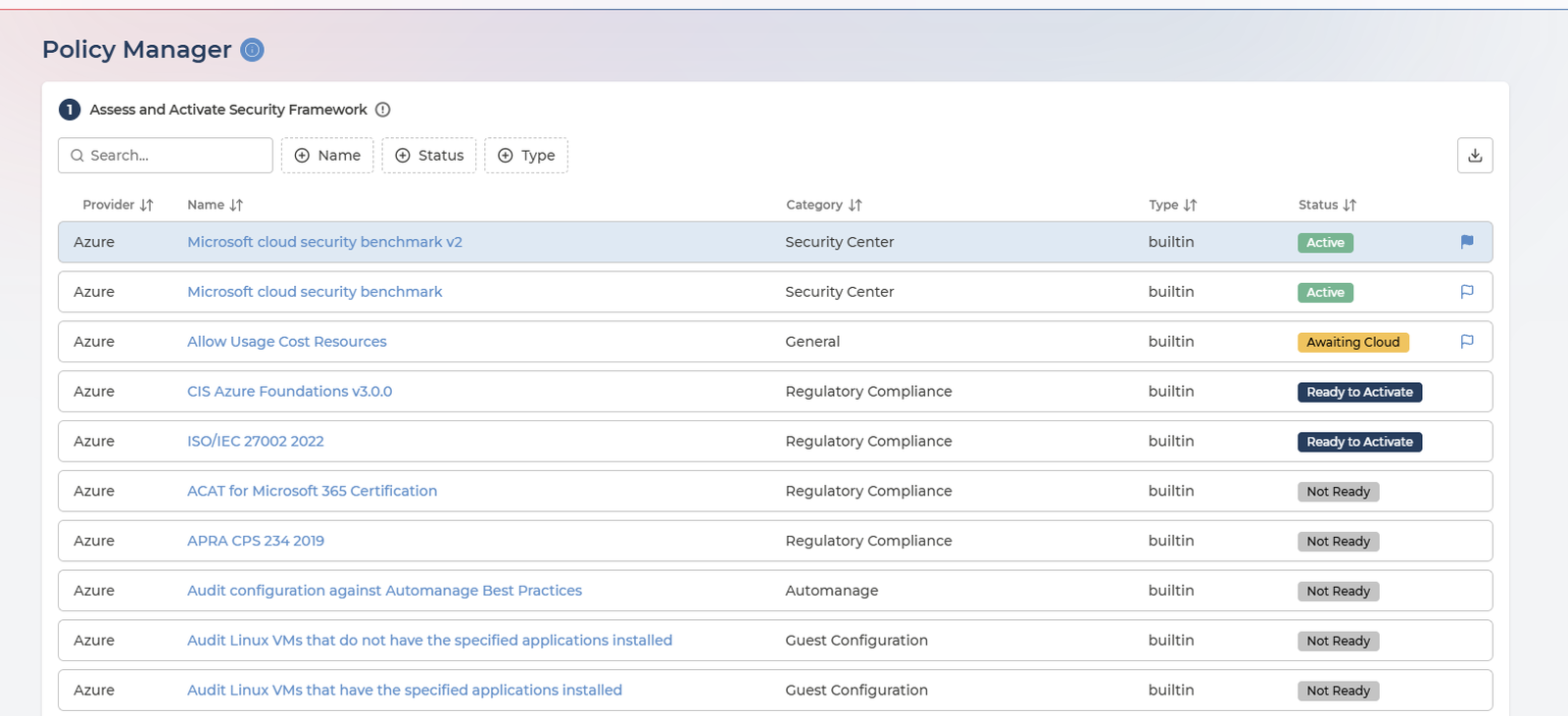
- Selecting a row filters the policies table beneath it, so the two cards always show a framework and that framework’s contents.
- One framework is selected at a time, and the selection is held in the page address - so a link to Policy Manager can point at a specific framework.
Every column in the framework list
| Column | What it holds | Values |
|---|---|---|
| Provider | Which cloud the framework applies to | AWS · Azure · Google Cloud |
| Name | The framework - click it to open the assessment | For example ISO/IEC 27001 2022, Microsoft cloud security benchmark |
| Category | What kind of framework it is | For example Regulatory Compliance, Security Center |
| Type | Whether it came from the provider or was built by you | builtin · custom |
| Status | Whether the framework is activated in Pulse, and whether compliance data is arriving from your cloud | Active · Awaiting Cloud · Ready to Activate · Not Ready |
Managers see one further column holding the default framework flag.
What the Status tells you
Status answers two questions at once: have you activated the framework in Pulse, and is your cloud actually evaluating the matching standard. Those are separate halves, and a framework needs both before it reports anything.
| Status | What it means | What to do |
|---|---|---|
| Active | Activated in Pulse, data flowing | Nothing. It is measuring you |
| Awaiting Cloud | Activated in Pulse, standard not enabled in Cloud | Enable the standard in your cloud - Pulse is ready and waiting |
| Ready to Activate | Not activated, data available | Activate it. It starts reporting immediately |
| Not Ready | Not activated, standard not enabled in Cloud | Both halves are outstanding. You can activate now, but it stays dormant until the cloud side is done |
Awaiting Cloud is the one worth watching. It means you have done your part and nothing is coming back - the framework will sit in your posture assessment reporting no violations until the standard is switched on in AWS, Azure or Google Cloud. Hovering any badge shows the same meaning as a tooltip.
Reviewing a framework
Click the framework name to open its detail panel. It opens on Activation, which holds the framework’s Status, a note explaining what that status means for you, and the action available. Below it sit Assessment, Review and More Info - the material describing the framework and what adopting it involves.
Read the assessment before activating. It is the same material your auditors and your own security team will ask you about.
Activating and deactivating
The Activation section carries the action - Activate if the framework is not currently activated, Deactivate if it is - and Pulse asks you to confirm that the framework should apply across the entire scope of the service.
On confirmation:
Request will be implemented in the next business day.
- Activating adds the framework to your organisation’s active posture assessment: the set of standards Pulse scores you against and raises violations for. It does not switch anything on in your cloud.
- Deactivating removes it from the service scope in Pulse, and likewise leaves your cloud untouched.
The note above the button changes with the status, so the panel tells you what will happen before you press anything:
- Active - This standard is Active - it is included in your posture assessment and compliance data is being retrieved. Deactivating removes it from Pulse only; your Cloud environment is not modified.
- Awaiting Cloud - This standard is activated in Pulse but not enabled in your Cloud environment, so no compliance data is retrieved. The note links to Enabling Standards in Your Cloud to close the gap.
- Ready to Activate - Compliance data for this standard is available. Activating includes it in your posture assessment immediately.
- Not Ready - This standard is not enabled in your Cloud environment. You can activate it in Pulse now, but it becomes Active only after you enable the standard in Cloud. This note links onward too.
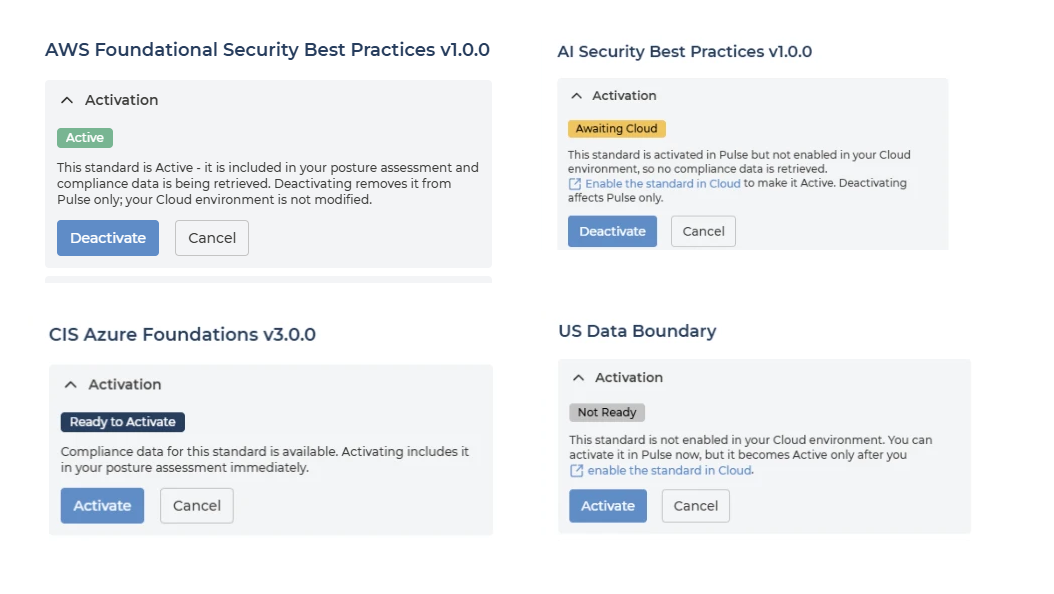
If the matching standard is not enabled cloud-side, the framework and all its policies still appear - but with no violations reported against them, and the Status reads Awaiting Cloud once you activate it. Enabling Standards in Your Cloud covers that half.
The default framework
Each cloud provider has one default framework, marked with a flag in the framework list. Managers set it by clicking the flag on any activated framework for that provider.
The default is organisation-wide. It decides which framework every user in your organisation opens on when they sign in to Pulse - not just the person who set it. They can switch to any other activated framework during their session, but the default is where everyone starts.
That makes it a reporting decision as much as a configuration one: whichever framework is default is the one your organisation will see first, and the one people will quote.
Two more things worth knowing:
- The flag only appears on frameworks that are already activated. Activate first, then set as default.
- The current default cannot be deactivated while it holds that role. Pulse stops you with You are trying to deactivate your active default framework and asks you to choose a different default for that provider first.
Step 2 - Assess and Enforce Policies
The lower card lists every individual policy inside the selected framework, with its current settings.
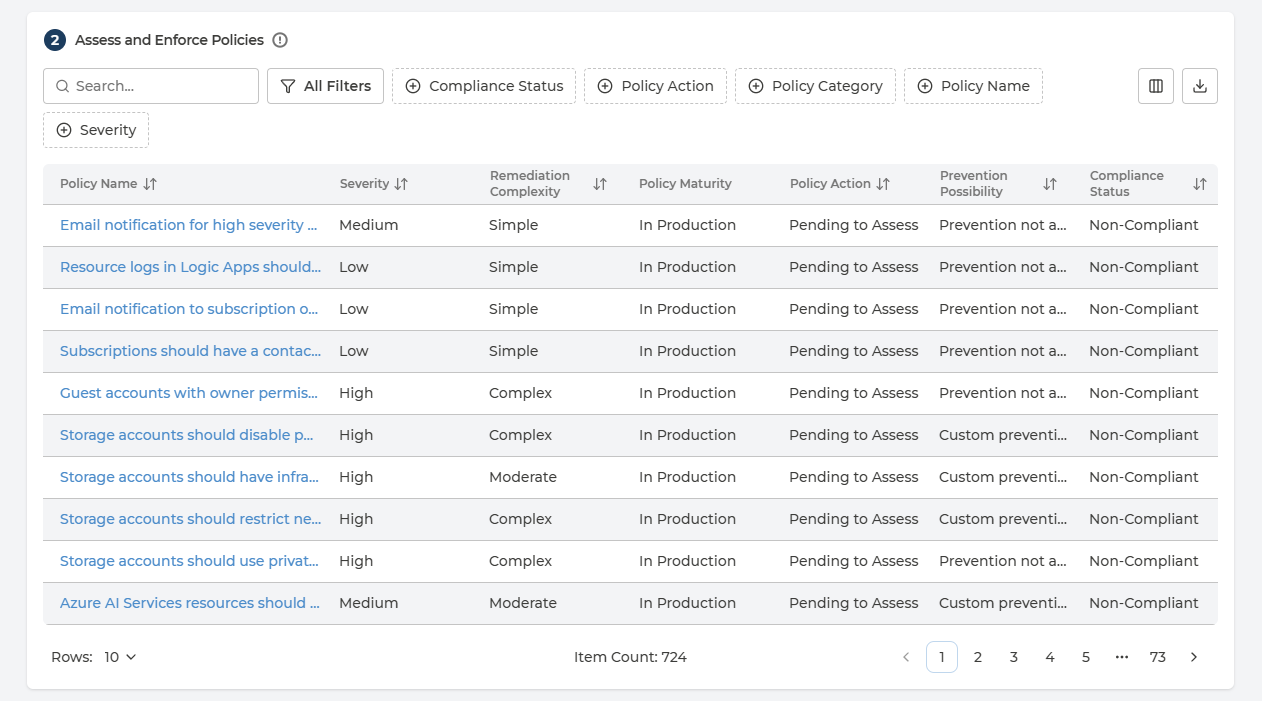
Three of the columns describe the policy as your cloud provider defines it and cannot be changed in Pulse - Policy Maturity, Prevention Possibility and Policy Release Date. The rest either assess the policy or record your decisions about it.
Every column in the policies list
| Column | What it holds | Values |
|---|---|---|
| Policy Name | The policy - click it to open the analysis | The provider’s own policy name |
| Policy Category | The security domain the policy belongs to | One of fourteen - see Compliance Analysis for the full set |
| Severity | The assessed risk of the policy | Low · Medium · High · Critical |
| Remediation Complexity | How much work a fix typically takes | Simple · Moderate · Complex · Redeployment · Guideline |
| Policy Maturity | Where the policy sits in your provider’s lifecycle | Preview · In Production · Decommissioned |
| Policy Action | What you decided should happen when it is broken | Pending to Assess · Under Investigation · Audit · Remediate · Exempt · Exemption Due Soon · Exempt Expired |
| Prevention Preference | Whether non-compliant deployments should be blocked | Permit · Prevent |
| Prevention Possibility | Whether the policy supports blocking at all | Prevention not available · Default prevention available · Custom prevention available |
| Compliance Status | What your cloud found | Compliant · Non-Compliant |
| Policy Release Date | When the provider published the policy | A date |
Policy Release Date is off by default. Which of the others appear is up to you - use the column control in the table toolbar. The list can be filtered, and the table exports to CSV in full, not only the page on screen.
Prevention Possibility is the column to check before setting Prevention Preference. A policy reading Prevention not available cannot be enforced preventively at all, whatever you would prefer.
Reviewing a policy
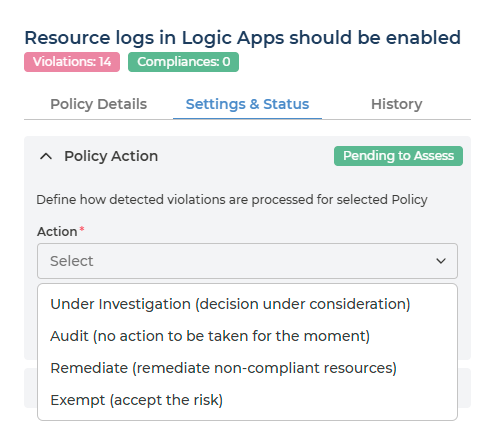
Click a policy name to open its panel. The header carries two counts - Violations and Compliances - the non-compliant and compliant resource counts for that policy. Below that are three tabs:
- Policy Details - the full analysis of the policy. Open Every field in the policy analysis below for what each section contains.
- Settings & Status - the two decisions you make, described after it.
- History - every change made to this policy’s settings, each entry recording the date and time, the user who made it, the Policy Action and Prevention set, and the comment they gave.
Every field in the policy analysis
Policy Review - what the policy is and why it matters
| Field | What it tells you |
|---|---|
| Name | The policy’s name |
| Severity | Low, Medium, High or Critical |
| Description | The provider’s own description of the control |
| Purpose | What the policy enforces, in one or two sentences |
| Benefits of Remediation | Three specific benefits of fixing it |
| Resource Type Affected | The resource types the policy applies to |
| Related Services Affected | Other services touched, and how |
| Possible Risk | What leaving it unaddressed may result in |
Change Impact - what happens to your estate if you remediate
| Field | What it tells you |
|---|---|
| Changes Made by Remediation | Exactly what property is changed, and whether it is in-place or destructive |
| Preparation for Remediation | The inputs to gather before starting |
| Service Reboot Required After Remediation | YES or NO, with the reason |
| Resource Redeployment Required for Remediation | YES or NO - YES means the resource must be recreated |
| Change Impact on Running Services | YES or NO, naming the workload disrupted |
Remediation Guides - how the fix is carried out
| Field | What it tells you |
|---|---|
| Manual Steps to Remediate | Numbered steps describing the target state |
| Remediation Complexity | How much work the fix takes - the five values are listed in the policy column box above |
| Roll Back Steps | How to reverse the change if it goes wrong |
| Verification in JSON | What a compliant resource looks like, as a property and value |
More Info - how the policy maps to the wider world
| Field | What it tells you |
|---|---|
| Controls Covered | The equivalent control in ISO/IEC 27001:2022, CIS Controls v8.1, NIST SP 800-53 Rev. 5, PCI DSS v4.0.1 and SWIFT CSCF v2025 |
| Maturity | Where the policy sits in the provider’s lifecycle |
| Category | The security domain |
| Standard Names | The frameworks that include this policy |
The same analysis appears wherever a policy or a violation is opened, so it reads identically in Remediation Planner and Compliance Analysis.
Possible Risk and Benefits of Remediation are written to be quoted directly to whoever approves the work, and Controls Covered answers the auditor’s question without a mapping exercise. Both are worth reading before deciding a Policy Action rather than after.
Policy Action
Policy Action answers “when this policy is broken, what do we want to happen?” It is the decision Remediation Planner and the reports downstream act on.
| Action | What it means | Justification |
|---|---|---|
| Remediate | Violations are to be fixed. It marks them for Risk Owners to prepare remediation | Optional |
| Audit | No remediation required. The policy is still evaluated and violations still recorded - they simply carry no expectation of a fix | Optional |
| Exempt | The risk is accepted. Violations are not shown and are ignored | Required |
| Under Investigation | No action assigned yet, because the policy’s implications are still being worked out | Required |
Exempt additionally requires an Exemption Expiry date, so an accepted risk cannot sit unreviewed forever, and takes an optional Risk Number to tie the decision to your own risk register.
Justification is required for exactly the two choices that leave a finding unfixed. That is deliberate - the reason has to be on the record.
Policy Action values you will see
Pending to Assess until someone decides, then whichever of Under Investigation, Audit, Remediate or Exempt was chosen.
Two further values appear on exempted policies - Exemption Due Soon and Exempt Expired - when the expiry date you set is approaching or has passed. Both still show as Exempt on the policy’s own badge, so the policy list is where to look when reviewing exemptions that need renewing.
Compliance Status is a different column and not a decision at all: it reads Compliant or Non-Compliant, and reports what your cloud found.
Prevention Preference
Prevention records whether your organisation wants non-compliant deployments permitted or prevented for this policy - whether the policy should be enforced before a resource is created rather than reported afterwards.
- Which choices are offered, and how they are described, comes from the policy itself, so it varies.
- Where a policy has no deny effect available, Pulse says so: Prevention not supported for this type of Policy.
Nothing Here Changes Your Cloud
Having seen what the page does, the boundary around it matters - and it applies to every control described above.
No action in Pulse makes a change in your cloud environment. Activating a framework, setting a policy to Remediate, choosing Prevent - none of it creates, alters or deletes anything in AWS, Azure or Google Cloud. What each setting produces is a decision, recorded and routed:
- On Pulse Premium - a note for your own teams. The record of what your organisation decided about that policy, visible to the people who act on it.
- With Managed Cloud Compliance - additionally a task for Devoteam Operations, who carry out the corresponding work in your cloud as an operated service.
So the page is a decision-making tool, not a deployment tool. Cloud-side changes are made separately - see Enabling Standards in Your Cloud.
Q&A
Does setting a policy to Remediate fix anything?
No. It marks the policy so that when a violation is detected, Risk Owners know a fix is expected and can prepare one. The work itself happens in Remediation Planner, and the change in the cloud is made separately - by your teams, or by Devoteam Operations where Managed Cloud Compliance is enabled.
What is the difference between Exempt here and an exemption request?
Scope:
- Exempt on this page is set by a Compliance Manager against the policy - every violation of it is ignored.
- An exemption request comes from a Risk Owner about a specific violation they cannot fix, and is approved or rejected on the Exemptions page.
A framework lists policies but reports no violations
Check its Status. If it reads Awaiting Cloud, that is exactly this situation: the framework is activated in Pulse, but your cloud is not evaluating the matching standard, so there is nothing to report. Enabling Standards in Your Cloud covers the cloud-side step.
This is why the framework list and the policies inside each framework are always complete - they do not depend on what your cloud evaluates. Violations are different: they come from your cloud.
Can I set Prevention on any policy?
Only where Prevention Possibility says the policy supports it. That comes from your cloud provider, not from Pulse - some policies have a deny effect available and some do not.
Who can see the decisions we record here?
Everyone in your company who can open Policy Manager, in the policy list and in each policy’s History tab. Because History records the user, the timestamp and the justification alongside each change, the decisions are auditable after the fact - which is the point of requiring a justification for Exempt and Under Investigation in the first place.