Asset Ownership
An inventory tells you what you have. Ownership tells you who is answerable for it - and that single addition is what turns a list of resources into something you can act on. Without it there is no accountability, no way to scope access, and no way to put a number against a team. This page covers what ownership gives you and how to set it up.
Table of contents
- What You Get From It
- Terminology
- The Ownership Tab
- Cost per Asset Group
- What a Delegated User Sees
- How Assets Are Allocated
- Who Can Do What
- Before You Start
- The Common Path
- Choosing an Approach
- Step 1 - Set Up Organisation Tagging
- Step 2 - Create an Asset Group
- Step 3 - Allocate Assets
- Delegating Users
- Managing Groups
- Scenarios
- Day-to-Day Reference
- Questions and Answers
- Next Steps
Screenshots show page content only, with delegated user names blurred; they appear in full in the product.
What You Get From It
Ownership is a means to four ends, and it is worth being clear about which one you are after before you configure anything:
| Purpose | What it gives you |
|---|---|
| Ownership Management | Every asset has a named responsible party, assigned through an Asset Group rather than one resource at a time |
| Accountability | Ownership information that operations, internal automations and other systems can consume |
| Security | A basis for granting or restricting who sees which resources and their recommendations |
| Economics | Cost allocation - cost per Asset Group, so a team sees its own spend instead of a company total, and spend can be attributed and recharged |
The cost view is the one that tends to justify the setup effort on its own - see Cost per Asset Group.
Terminology
| Term | Definition |
|---|---|
| Asset | A metadata copy of a cloud provider object - virtual machines, public IP addresses, firewall rules, billing containers, configuration items |
| Asset Parent | Every asset has a parent container. Azure: Cloud Tenant → Subscription → Resource Group → Resource. AWS: Cloud Organization → Account → Resource. Google: Cloud Organization → Project → Resource |
| Asset Group (AG) | A logical grouping of allocated assets, visible to the users delegated to it |
| Allocation | Assigning an asset to an Asset Group |
| Delegation | Assigning a user to an Asset Group as its owner |
| Cost allocation | The FinOps practice of attributing cloud spend to the team or business unit responsible for it. In Pulse it is the result of the two above: once assets belong to a group, so does their cost |
Allocation and delegation are easy to confuse and do different jobs: allocation decides what is in a group, delegation decides who can see it.
The Ownership Tab
Ownership lives on the second tab of the Assets page.
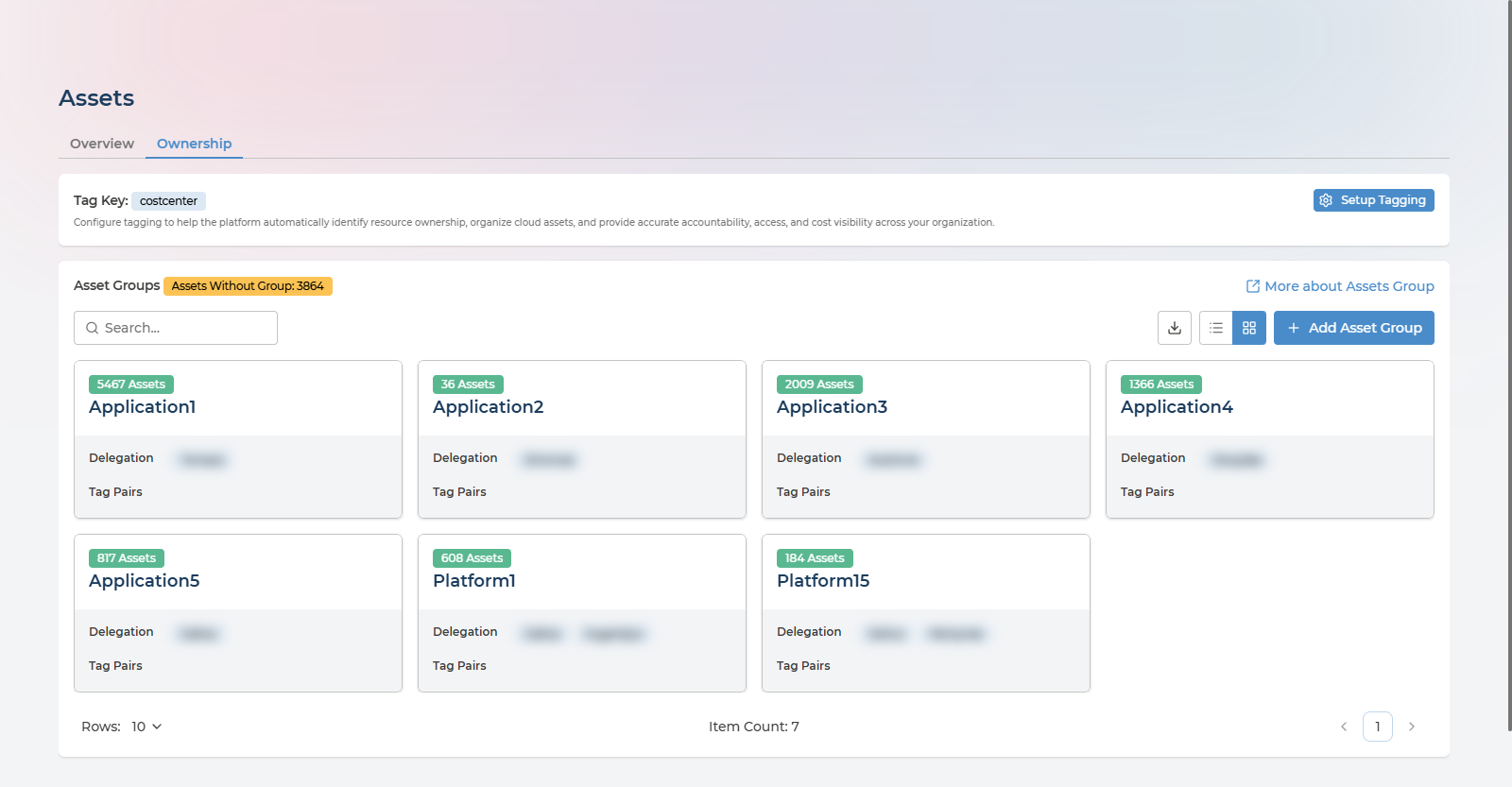
Asset Groups shows every group with the number of assets allocated to it, the users delegated to it, and the tag pairs that pull assets in automatically. Search by group name to find a team, switch between card and list views, export the groups to CSV, or create one with Add Asset Group. Opening a group leads to its detail page, where allocation and delegation are managed.
Two figures here are worth returning to:
- Tag Key, at the top, is the single company tag Pulse uses to assign assets to groups automatically -
costcenterin the example above. This is the setting that makes ownership maintain itself instead of needing manual work. - Assets Without Group counts everything that has escaped assignment altogether. It is the gap between having an inventory and having accountability for it, and reducing it is the point of everything below.
Cost per Asset Group
This is cost allocation: once assets are allocated, the Asset Group tab on the Costs page reads your cloud bill by team instead of by service or subscription. It is the practice most FinOps work depends on, and ownership is what makes it possible without restructuring your subscriptions to match your org chart.
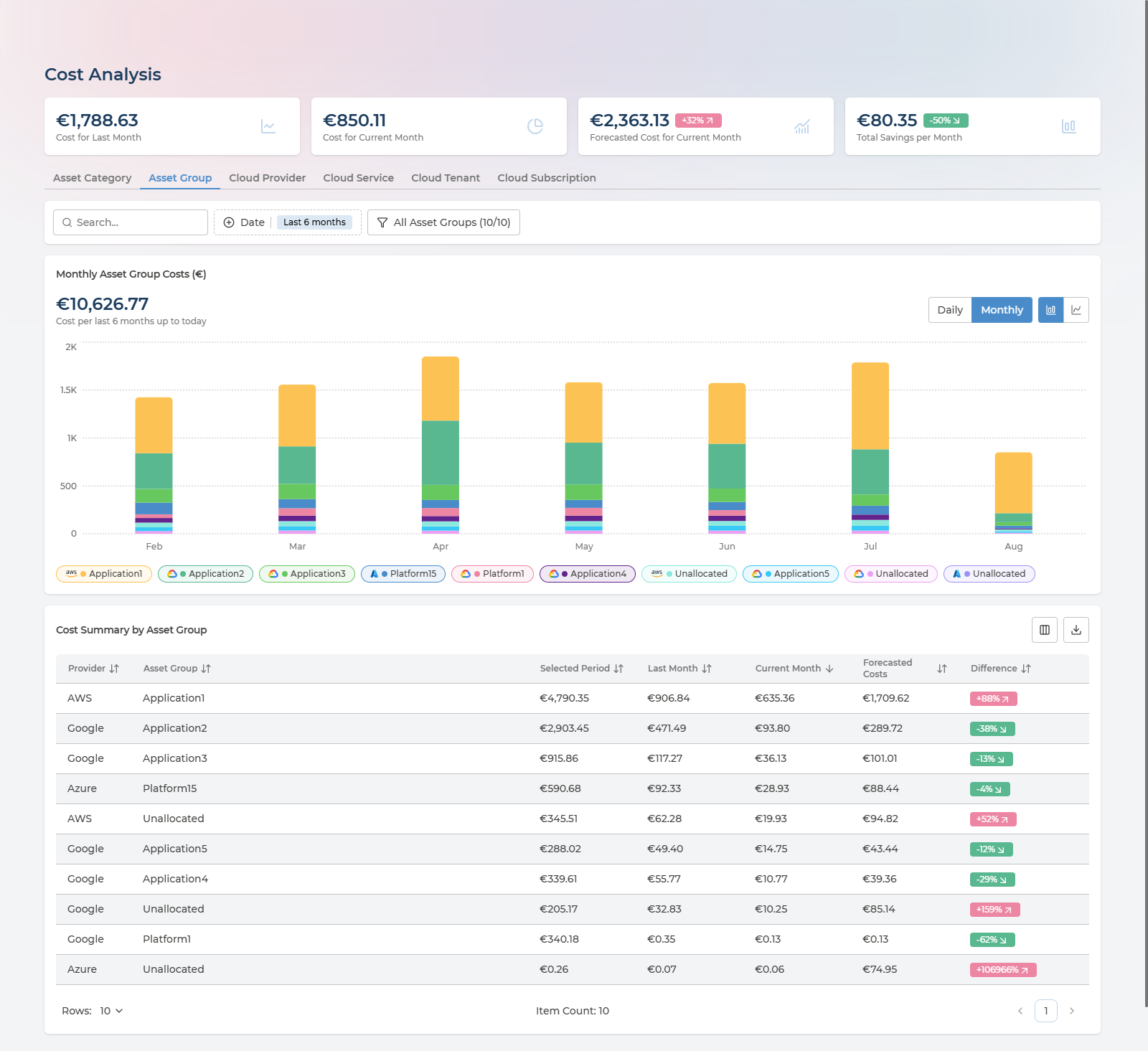
Each group gets its spend for the period, last month, the current month, a forecast and the trend between them. This is the number to hand to the team that generated it, and it arrives without anyone having to reorganise subscriptions or maintain a spreadsheet.
Note the Unallocated rows, one per provider. That is spend nobody owns. It is the same accountability gap the Ownership tab reports as Assets Without Group, expressed in currency - which is usually the more persuasive form.
What a Delegated User Sees
Delegation is not a label on a group - it changes what Pulse shows. A user delegated to one group sees that group’s estate and nothing else, on every page, without any filtering on their part.
Compare these with the two screenshots above, which are the same screens seen by someone with visibility of the whole estate.
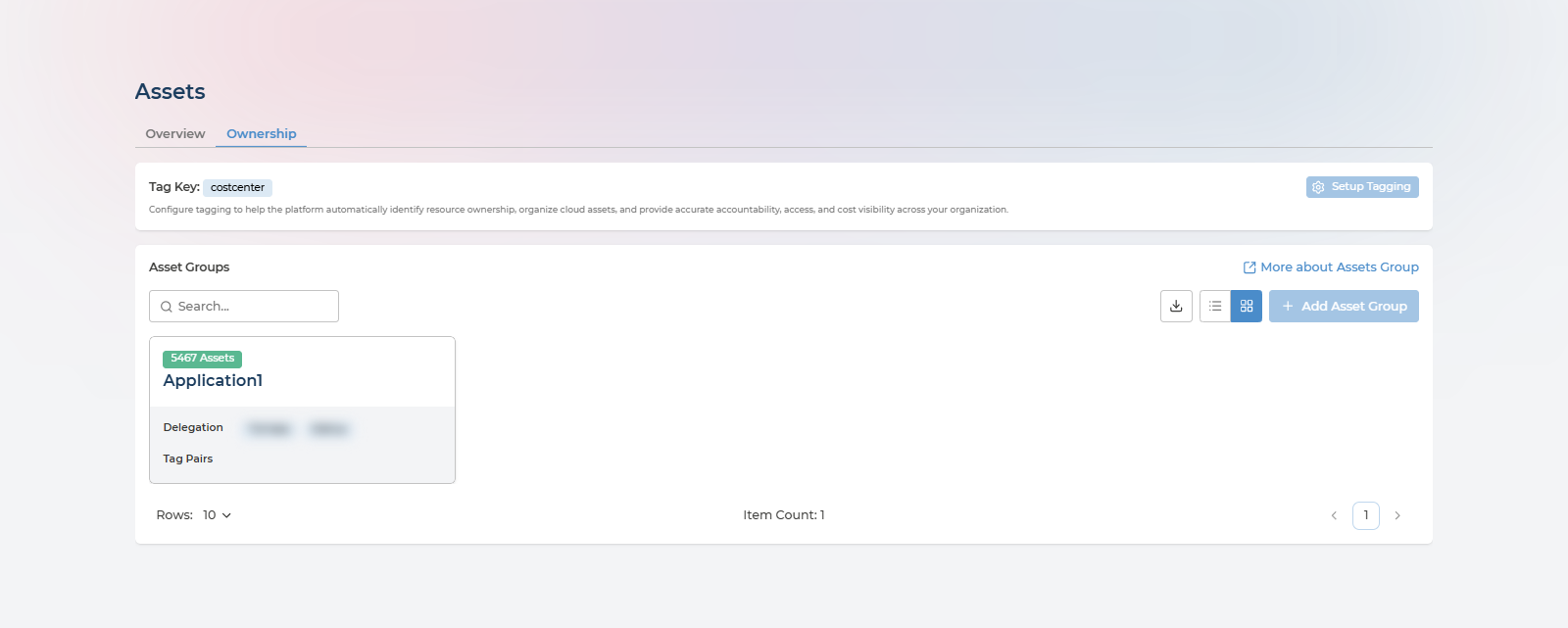
The Ownership tab lists one group instead of seven. Assets Without Group is absent, because unowned assets elsewhere in the estate are not this user’s concern. Setup Tagging and Add Asset Group are greyed out - company-wide configuration stays with the Ownership Manager.
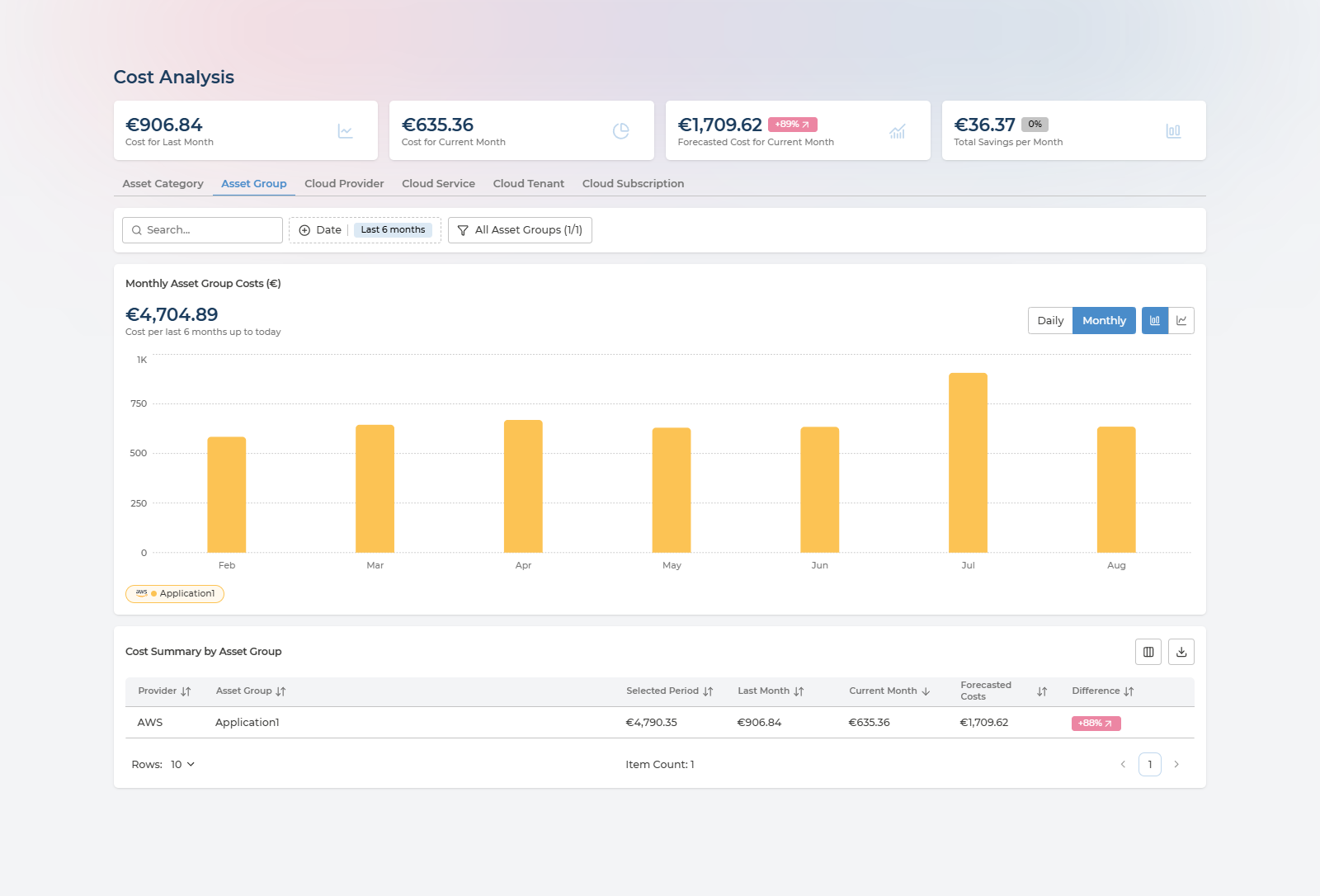
On the Costs page the rescoping goes further than the table. The headline figures change too: this user’s Cost for Last Month reads €906.84 - their group’s spend - where the same card shows €1,788.63 for the whole company. Six-month spend reads €4,704.89 against €10,626.77, the chart carries a single series, and the summary table has one row.
That is what makes delegation safe to hand out widely. A team lead gets their own costs, their own assets and their own recommendations, in the same interface, without seeing anyone else’s - and without you building a separate report for them.
How Assets Are Allocated
Every asset belongs to exactly one group at a time. When more than one rule could apply, a strict priority decides:
- Direct - an Ownership Manager assigned the asset by hand. Always wins.
- Tag - the asset carries a cloud tag key:value that maps to a group. Applies when there is no direct allocation.
- Inheritance - an automatic rule places the asset in its parent’s group, when neither direct nor tag allocation applies.
- Unassigned - the catch-all Default group, for everything with no other allocation.
Direct beats tag; tag beats inheritance. Most surprises about group membership come from forgetting this order - a direct allocation made months ago will quietly keep overriding the tag you just fixed.
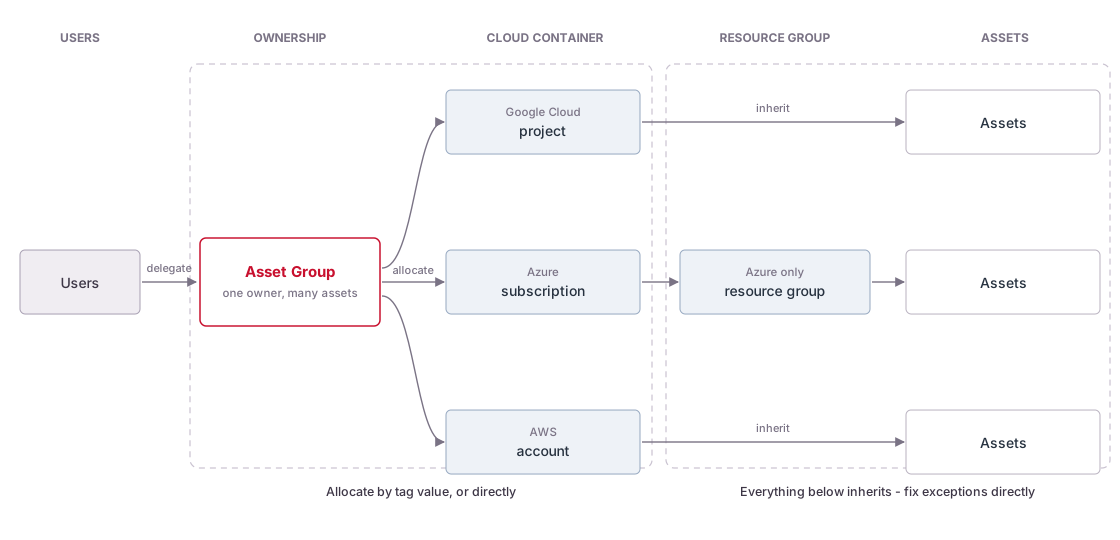
The whole model in one picture. Users are delegated to an Asset Group; the group is allocated containers - a Google Cloud project, an Azure subscription, an AWS account - and the assets beneath them inherit that group without being allocated one by one. Which is why allocating at the container level and letting inheritance do the rest is so much less work than the alternative, and why direct allocation exists only to fix the cases inheritance gets wrong.
Who Can Do What
Configuring ownership - creating groups, allocating assets, setting up tagging and delegating users - requires the Ownership Manager role. Ask a Manager to grant it to you if you do not have it.
The Manager and Analyst roles have read-only visibility of every Asset Group, without needing to be delegated to them.
A user delegated to an Asset Group needs the Company User role, and then sees the same pages as everyone else in the company, with everything on them limited to the assets in their group or groups. Delegation is what sets that boundary - see What a Delegated User Sees.
These are ownership’s own rules. They govern who can configure groups and whose assets a user sees - not which Pulse services your company has.
Before You Start
- You hold the Ownership Manager role. If not, a Manager grants it in user management.
- At least one cloud is connected and has synced, so assets exist to allocate - see Cloud Onboarding.
- Users you intend to delegate already exist and hold at least the Company User role.
- If you plan to use tag-based allocation, the assets are already tagged in the cloud with the key:value pairs you intend to use.
Point 4 is the one that catches people out: Pulse reads the tags your cloud already has. It does not create them.
The Common Path
Most organisations end up here, and it takes about ten minutes of actual work:
- On Assets → Ownership, click Setup Tagging and pick the tag key your teams already use for ownership - something like
costcenter,teamorowner. - Enable Automatically Create Asset Groups by Tag Values, so Pulse creates one group per distinct value it finds instead of you naming them.
- Wait for the next processing cycle - up to 24 hours - then come back.
- Check Assets Without Group. Whatever is left has no usable tag, and is the list worth fixing.
- Delegate users to the groups that matter, and read spend per group on the Costs page’s Asset Group tab.
The sections below cover the alternatives, the detail behind each step, and what to do when tags cannot express how you are organised.
Choosing an Approach
| Approach | Best when | What you do |
|---|---|---|
| Automatic (recommended) | Your cloud tagging is consistent | Pick a tag key and let Pulse create one group per tag value |
| Semi-manual | You need group names or groupings that do not map 1:1 to tag values | Create groups yourself, then attach a tag value to each |
| Manual | One-off corrections, untagged assets, or tag allocation producing the wrong answer | Assign assets directly |
These are not exclusive. The common end state is automatic for the bulk of the estate with a handful of direct allocations fixing what the tags cannot express.
Step 1 - Set Up Organisation Tagging
This defines which cloud tag key represents ownership across the whole estate. It is a one-time, company-level setting.
Skip this if you only intend to allocate directly.
- On the Assets page, open the Ownership tab.
- Click Setup Tagging (or the existing tag key button, if one is already configured).
- In the panel that opens:
- Associated Tag - select the tag key that carries ownership, for example
costcenter,teamorowner. - Automatically Create Asset Groups by Tag Values - enable this to have Pulse generate one group per distinct tag value it finds.
- Associated Tag - select the tag key that carries ownership, for example
- Save.
Groups created this way are initially named after the tag value; rename them freely afterwards.
Step 2 - Create an Asset Group
Only needed for the semi-manual approach. Skip it if Step 1 created your groups.
- On the Ownership tab, click Add Asset Group.
- In the Group Builder panel:
- Group Name - something a person would recognise, such as
Networking TeamorProduction AWS. - Delegate Asset Owners - one or more users, each holding at least the Company User role.
- Group Name - something a person would recognise, such as
- Save.
The group’s detail page opens with allocation still to do.
Step 3 - Allocate Assets
Three ways in, matching the three approaches above.
Option A - By tag pair
- Open the group’s detail page.
- Click Allocate Based on Tag Pair.
- Choose the Tag Value that belongs to this group. The tag key is already filled in from Step 1.
- Save.
Tag allocation is not immediate. Assets appear in the group once the next processing cycle has run, which can take up to 24 hours. This is the most common reason for “I configured it and nothing happened”.
Option B - Directly, from the group
- Open the group’s detail page.
- Click Allocate Directly.
- Narrow the list with the cloud provider, custom and tag filters.
- Tick the assets you want.
- Click Assign to Group.
This takes effect immediately, and takes priority over any tag or inherited allocation for those assets.
Option C - In bulk, from the inventory
- Go to the Assets page, Overview tab.
- Tick the assets you want using the row checkboxes.
- Click Manage Allocation.
- Choose the target group, or Unallocate to return them to the Default group.
Useful when you are working from the inventory rather than from a group - you find the assets first and decide where they belong second.
Delegating Users
Open the group, update Delegate Asset Owners in the Group Builder panel, and save.
From then on that user sees the company’s pages scoped to the assets in this group. Delegating the same user to several groups widens the boundary to cover all of them.
Managing Groups
Edit - open the group and change its name or delegates in the Group Builder panel.
Unallocate - from the Assets Overview tab, select the assets, click Manage Allocation and choose Unallocate. They return to the Default group.
Delete - only possible when a group has zero allocated assets. Unallocate everything first, then delete.
The Default Group
Pulse maintains a read-only Default group that collects every asset not allocated anywhere else. Ownership Managers, Managers and Analysts can all see it. Treat it as your worklist: everything in it has no owner.
Scenarios
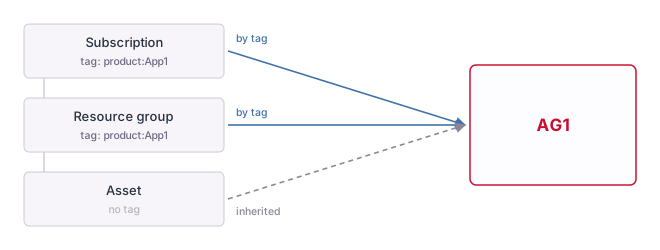
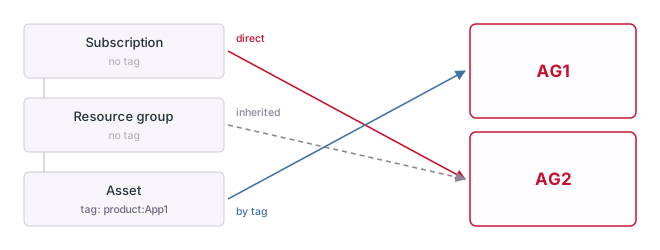
Four situations, each drawn out. In every diagram the cloud hierarchy runs down the left - subscription, resource group, asset - with the tag each one carries. The line shows which Asset Group it ends up in, and how it got there:
- Blue, by tag - the tag matched a group
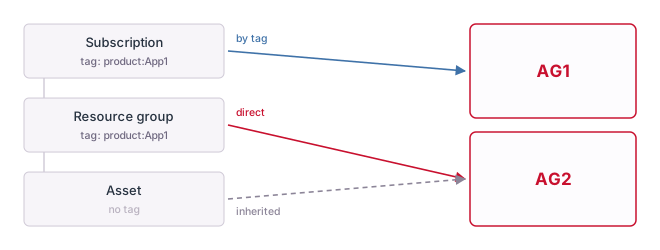
- Red, direct - someone allocated it by hand, which overrides the tag
- Grey dashed, inherited - nothing else applied, so it followed its parent
Azure is used because its extra resource group level shows inheritance most clearly. The same rules apply to AWS accounts and Google Cloud projects, with one level fewer.
Tag-based setup - the common case
Configure a tag key, enable automatic creation, and let tag allocation do the work while inheritance handles the untagged children. This leans on the tagging strategy you already have, and is where most organisations end up.
Two applications in one subscription
Tags alone cannot always separate them. Allocating the resource group directly to another group overrides its tag - and its assets follow it there rather than to the group the subscription is in.
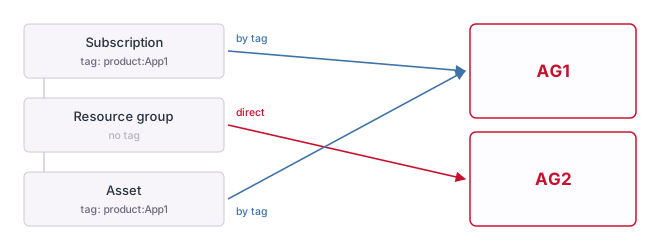
A resource group split across teams
Possible, and sometimes unavoidable, but worth avoiding where you can. The asset keeps its own tag and stays in AG1 while the resource group around it belongs to AG2 - and those crossing lines are exactly what makes this hard to reason about six months later.
An asset that must not follow its parent
A virtual machine inside a resource group owned by another team, for example. Allocating the subscription directly pulls the resource group along with it by inheritance, while the tagged asset still lands in its own group.
Day-to-Day Reference
Where to do each thing
| Task | Where |
|---|---|
| See all groups | Assets → Ownership tab, card or list view |
| See the assets in a group | Open the group; the asset table is on its detail page |
| See unallocated assets | The Default group, or the Assets Without Group count |
| Check how an asset was allocated | Assets → Overview tab, Allocation Type column or filter |
| Find which group an asset belongs to | Assets → Overview tab, Asset Group column or filter |
| Reassign assets | Assets → Overview tab, select rows, Manage Allocation |
| Read spend per group | Costs page, Asset Group tab |
Questions and Answers
I configured tag-based allocation but nothing has appeared
Tag allocation is not immediate - allow up to 24 hours for the next processing cycle. If it is still empty after that, check that the asset really carries the exact tag key and value in the cloud, since Pulse matches them literally.
The Add Asset Group button is not there
It is only shown to Ownership Managers. Ask a Manager to grant you that role.
Can an asset be in two groups at once?
No. Exactly one group at a time, decided by the priority order: direct, then tag, then inheritance, then unassigned.
Direct allocation is overriding the tag I set - is that right?
Yes. Direct allocation always wins. To let the tag take effect, unallocate the asset to clear the direct allocation, then allow tag allocation to place it.
A delegated user cannot see their group
Confirm the user holds the Company User role as well as being delegated, and that the group actually has assets allocated to it - a group with nothing in it looks the same as no access.
I want groups generated from the tags I already use
Enable Automatically Create Asset Groups by Tag Values in the Setup Tagging panel. Pulse creates one group per distinct value it finds, which you can then rename.
Why can’t I delete this group?
Groups must be empty before they can be deleted. Unallocate every asset in it first.
Next Steps
- See ownership in context of the wider inventory: Cloud Inventory
- Connect a cloud so there are assets to allocate: Cloud Onboarding
- Learn more about the platform: Pulse Ecosystem